



You record interviews, meetings, and podcasts. Then you spend hours typing everything out. Worse, you might pay someone else to do it, which gets expensive fast. Descript transcription offers a faster way to turn your audio and video files into text, but getting accurate results requires more than just hitting the upload button.
Descript combines AI powered transcription with editing tools that let you fix mistakes, identify speakers, and clean up filler words. You can correct errors directly in the transcript while the software highlights the corresponding audio. This makes the whole process faster than traditional transcription services.
This guide shows you how to convert audio files to text using Descript. You’ll learn how to prepare your files for better accuracy, use Speaker Detective to label different voices, remove filler words automatically, and export your finished transcript. We’ll also cover when Descript works best and when you might need a professional service instead.
Why use Descript for transcription
Descript transcription stands out because it combines automated transcription with editing tools in one interface. You don’t need to jump between a transcription service and a text editor. The software lets you edit your transcript by editing the audio, which means cutting words from the text also removes them from your recording. This direct connection between text and media makes revisions faster than traditional workflows.
Real-time editing saves hours of work
You can fix mistakes while listening to your audio instead of reviewing the entire transcript afterward. Descript highlights the current word as your recording plays, so you spot errors immediately. When you find something wrong, click the text and type the correction. The software updates both the written transcript and the audio waveform to match your changes.
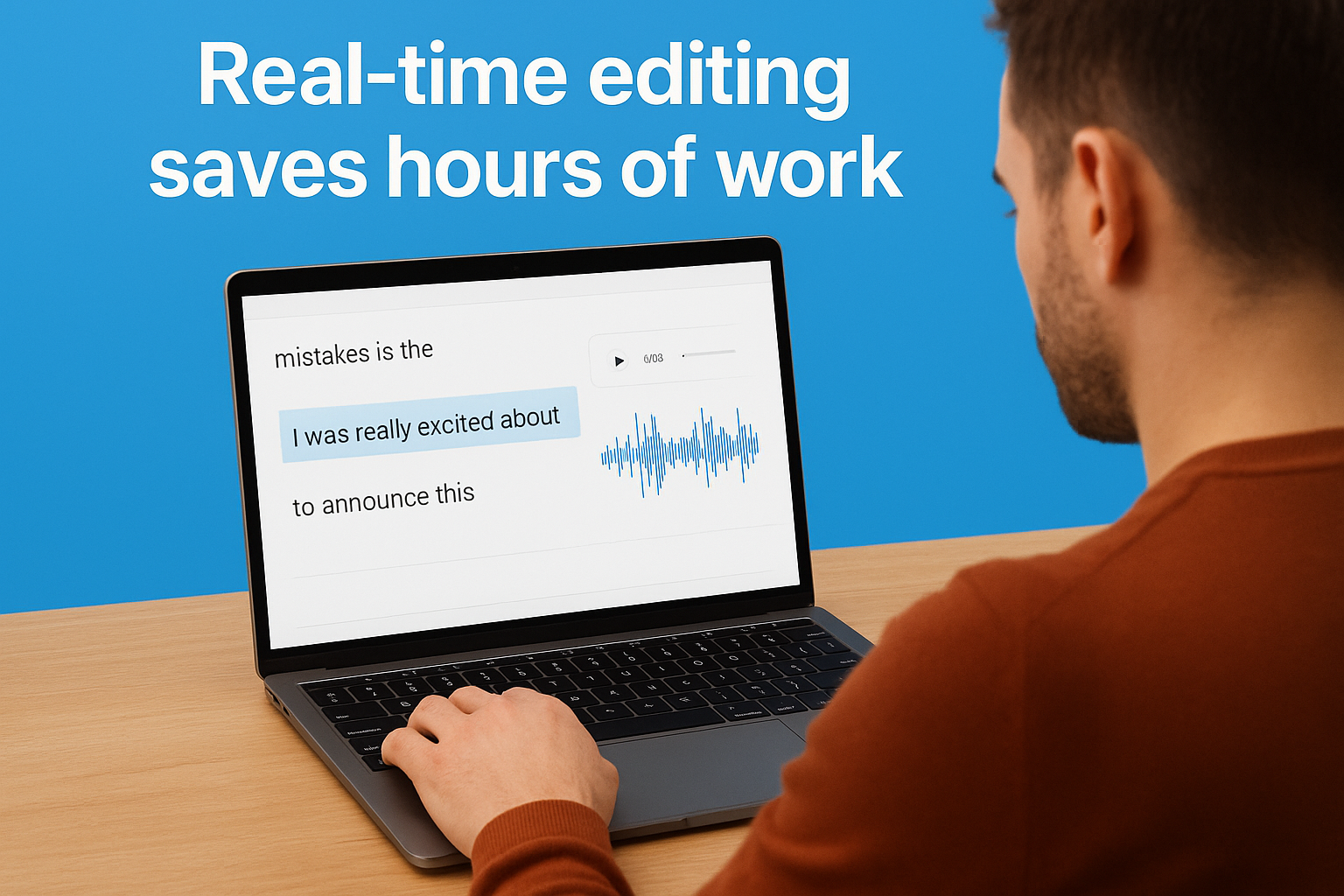
This approach works particularly well for podcast editing. You identify filler words, remove them from the transcript, and Descript automatically cuts them from the audio. Traditional editing requires you to find each "um" and "uh" in the waveform manually, which takes significantly longer.
Built-in speaker identification handles interviews
Speaker Detective analyzes your recording and separates different voices into labeled sections. You don’t manually mark who’s talking throughout an hour-long interview. The tool detects voice patterns and creates speaker labels automatically, then lets you assign names to each voice. Your finished transcript shows clear speaker tags before each section of dialogue.
Automatic speaker separation becomes critical when you’re transcribing group discussions or panel interviews with multiple participants.
Compare this to manual transcription services where you often receive a single block of text with no speaker labels unless you pay extra. Descript includes this feature in all paid plans, and you can adjust the labels if the software misidentifies a speaker.
Template-based workflow for recurring projects
You can save correction patterns and custom vocabularies for projects you do regularly. If you frequently transcribe medical interviews, add medical terms to your custom dictionary once. Descript remembers these words for future transcriptions instead of making the same mistakes repeatedly. The software also lets you create filler word removal templates, so you don’t manually select which words to remove every time.
Your templates carry over between projects. Record a new podcast episode, upload it, apply your saved template, and Descript removes all the filler words you specified. This automation becomes more valuable as you process more files.
Direct export to multiple formats
Descript exports your transcript as plain text, SRT subtitles, or VTT captions without requiring additional conversion tools. You select your format, click export, and receive a properly formatted file. When you need subtitles for a video, the software includes timestamps automatically because it knows exactly where each word appears in your recording.
Professional transcription services typically deliver only text documents. If you want timestamps or subtitle formats, you pay extra or use a third conversion tool. Descript includes these options by default, which eliminates an extra step in your production process.
Cost structure favors high-volume users
The software charges per month rather than per minute of audio. You get unlimited transcription hours on paid plans, which means your cost stays the same whether you transcribe two hours or twenty. Traditional services charge based on audio length, so costs rise as your workload increases. Heavy users save money with Descript’s flat-rate pricing.
Free accounts include limited transcription hours each month. This lets you test the accuracy and workflow before committing to a subscription. Once you upgrade, you process as many files as needed without watching a meter run.
Prepare your files for the best results
Audio quality directly affects transcription accuracy. You can’t expect perfect results from a recording made on a phone in a crowded coffee shop. Descript transcription works best when your source file gives the software clear audio to analyze. Spending five minutes preparing your files before upload prevents hours of manual corrections afterward.
Choose the right audio format and quality
Upload files in WAV, MP3, M4A, or MP4 format for best results. Descript accepts most common formats, but you should avoid heavily compressed files that strip out audio information. Keep your bitrate at 128 kbps or higher for spoken content. Lower bitrates create artifacts that sound fine to your ears but confuse transcription algorithms.
Check your sample rate before recording. Use 44.1 kHz or 48 kHz instead of lower settings like 22 kHz. Recording software often defaults to lower quality to save space, which hurts accuracy. Your file size increases slightly, but you’ll spend less time fixing mistakes. Audio recorded at proper quality levels gives the software clear word boundaries to detect.
Recording at higher quality costs you storage space but saves you editing time later.
Clean up background noise before uploading
Remove consistent background noise like air conditioner hum or computer fans before transcription. Descript includes noise reduction tools, but you get better results when you clean the audio first. Use free tools like Audacity if you don’t have audio editing software. Apply a noise reduction filter that targets the specific frequency of your background noise rather than a general filter that might affect voice clarity.
Listen for sudden sounds like door slams or dropped objects and either cut them out or lower their volume. These spikes interrupt the transcription engine’s analysis of speech patterns. Background music causes similar problems because the software tries to transcribe lyrics along with your dialogue. Mute music tracks before uploading or record without background audio entirely.
Ensure clear speaker separation
Position microphones 6 to 8 inches from each speaker’s mouth during recording. This distance captures clear audio without picking up breathing sounds or plosives. When you record remote interviews, ask participants to use headphones so their microphone doesn’t pick up your voice coming through their speakers. Avoid recording in rooms with hard surfaces that create echo, which makes individual words harder for the software to distinguish.
Record each speaker on a separate track when possible. Descript handles multi-track files and uses this separation to improve speaker identification accuracy. Label your tracks before uploading with simple names like "Host" and "Guest" rather than generic labels like "Track 1." This organization helps you assign speaker names faster once Speaker Detective finishes its analysis.
Step 1. Upload your media file
Descript transcription starts the moment you add your audio or video file to the platform. The upload process determines which transcription engine Descript uses and how accurately it processes your content. You set parameters during upload that affect speaker detection, language recognition, and file organization. Getting these settings right the first time saves you from re-uploading files later.
Locate the upload interface
Open Descript and click the "New" button in the top left corner of your workspace. The software displays three options: New Composition, New Project, or Import Media. Select "New Composition" to start a transcription project. A composition in Descript combines your media file with its transcript in a single editable document.
Your screen shows the upload window with a large drag-and-drop zone in the center. You can either drag your file directly onto this area or click "Browse files" to open your computer’s file picker. The interface accepts individual files or entire folders if you need to transcribe multiple recordings at once.
Select your file and choose settings
Navigate to your audio or video file and select it. Descript immediately displays a transcription settings panel before processing begins. The first dropdown menu asks you to choose your language. Select the language spoken in your recording from the list. Descript supports over 20 languages, but accuracy drops significantly if you select the wrong one.
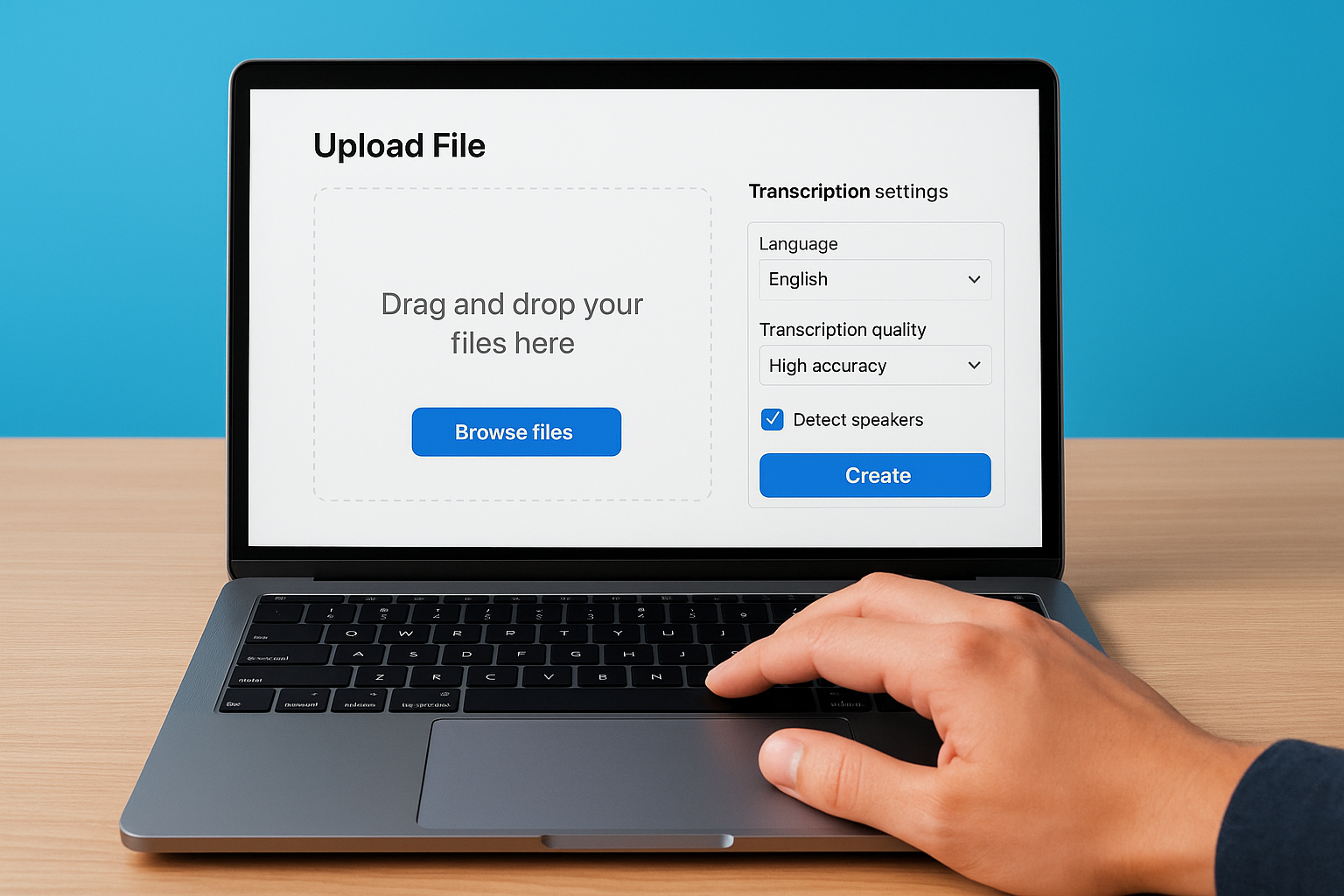
Below the language selector, you’ll see the transcription quality setting. Choose between Standard and High Accuracy. Standard processes faster but makes more mistakes with technical terms, accents, or overlapping speech. High Accuracy takes longer but produces cleaner results that require less manual editing. Select High Accuracy for important projects or when you’re transcribing specialized content.
Choose High Accuracy for content you plan to publish or share with clients, since fixing errors later takes more time than waiting for better initial results.
Check the "Detect speakers" box if your recording contains multiple people talking. This option activates Speaker Detective, which we’ll cover in the next section. Leave this box unchecked for solo recordings or voiceovers where only one person speaks throughout the file.
Monitor the upload progress
Click "Create" after setting your preferences. Descript displays a progress bar showing two stages: upload percentage and transcription percentage. The upload portion depends on your file size and internet speed. A one-hour audio file at standard quality typically uploads in 3 to 5 minutes on a cable connection.
Watch for any error messages during upload. "Unsupported format" errors mean you need to convert your file before Descript can process it. Common causes include proprietary audio formats or files with DRM protection. Convert these files to MP3 or WAV using free tools before retrying the upload. The transcription phase begins automatically once upload completes, and you can start editing as soon as the first words appear on screen.
Step 2. Label speakers with Speaker Detective
Speaker Detective runs automatically after Descript transcription completes if you checked the "Detect speakers" box during upload. The software analyzes voice patterns throughout your recording and groups segments by speaker. You’ll see your transcript divided into sections with labels like "Speaker 1" and "Speaker 2" instead of a single block of undifferentiated text. Your job now involves assigning actual names to these detected voices and correcting any mistakes the algorithm made.
Understanding automatic speaker detection
The software identifies different speakers by analyzing pitch, tone, and speech patterns in your audio file. Speaker Detective creates boundaries between speakers when it detects a voice change, then assigns a temporary label to each voice it finds. You might see three or four speaker labels for a two-person conversation if background voices interrupt or if one person’s voice changes significantly during the recording.
Speaker Detective works best with recordings where each person speaks for at least 10 seconds at a time, giving the algorithm enough audio to establish a voice pattern.
Check the accuracy by scanning through your transcript. Look for sections where the same person appears under different speaker labels, which happens when someone coughs, speaks softly, or has their voice distorted by technical issues. These splits are normal and fixable in the next step.
Assign names to detected speakers
Click the first speaker label in your transcript, which appears in the left margin before their dialogue. A dropdown menu shows all detected speakers and an option to "Rename speaker." Select "Rename speaker" and type the person’s actual name in the text box that appears. Press Enter to save the name.
The software immediately replaces every instance of that speaker label with the name you entered. If Speaker 1 was actually John Smith, every section previously labeled "Speaker 1" now shows "John Smith" instead. Repeat this process for each speaker in your recording until you’ve replaced all generic labels with real names.
Fix misidentified speaker segments
Descript occasionally assigns the same person’s words to different speakers or combines two speakers into one label. You’ll notice this when dialogue from one person appears under another person’s name or when the transcript shows unrealistically rapid speaker changes. Select the incorrectly labeled section by clicking anywhere in that paragraph.
Look for the speaker dropdown that appears above the selected text. Click it and choose the correct speaker from your list of labeled voices. The software moves that section under the proper speaker and maintains the change throughout your transcript. Work through your recording from start to finish, correcting each misidentified segment as you find it. This cleanup process takes 5 to 10 minutes for a typical hour-long interview with two speakers.
Step 3. Correct text and remove filler words
Your transcript appears on screen with automatically generated text, but Descript transcription rarely produces perfect results on the first pass. You’ll find misspelled technical terms, incorrect homophones, and scattered filler words throughout your document. This step focuses on fixing transcription errors and cleaning up verbal tics that make your final transcript harder to read. The software links your text directly to your audio timeline, which means you can listen and edit simultaneously instead of reviewing everything twice.
Edit mistakes directly in the transcript
Click anywhere in your transcript to start editing. The software highlights the current word in purple as your audio plays, so you can follow along and spot errors in real time. When you find a mistake, pause playback and click the incorrect word to place your cursor there. Type the correction exactly as you would in any text editor. Descript updates the transcript immediately and maintains the timestamp connection to your audio.
Common errors include misheard technical terms, brand names, and acronyms that don’t exist in Descript’s dictionary. You might see "Languages Unlimited" transcribed as "languages and limited" or "USCIS" written as "US CIS." Select the entire phrase by clicking and dragging across the words, then type the correct version. The software remembers these corrections and suggests them automatically in future transcriptions when you add them to your custom dictionary.
Press Command+F (Mac) or Control+F (Windows) to search for repeated errors throughout your transcript and fix them all at once instead of correcting each instance individually.
Look for words that sound similar but have different meanings like "their," "there," and "they’re." Descript chooses based on context, but makes mistakes with complex sentence structures. Review these homophones carefully since spell checkers won’t flag them as errors.
Remove filler words automatically
Click the "Remove filler words" button in the top toolbar after you finish correcting transcription errors. Descript displays a panel showing all filler words it detected in your recording, organized by frequency. You’ll see counts for "um," "uh," "like," "you know," and similar verbal tics that appear throughout spoken conversation.
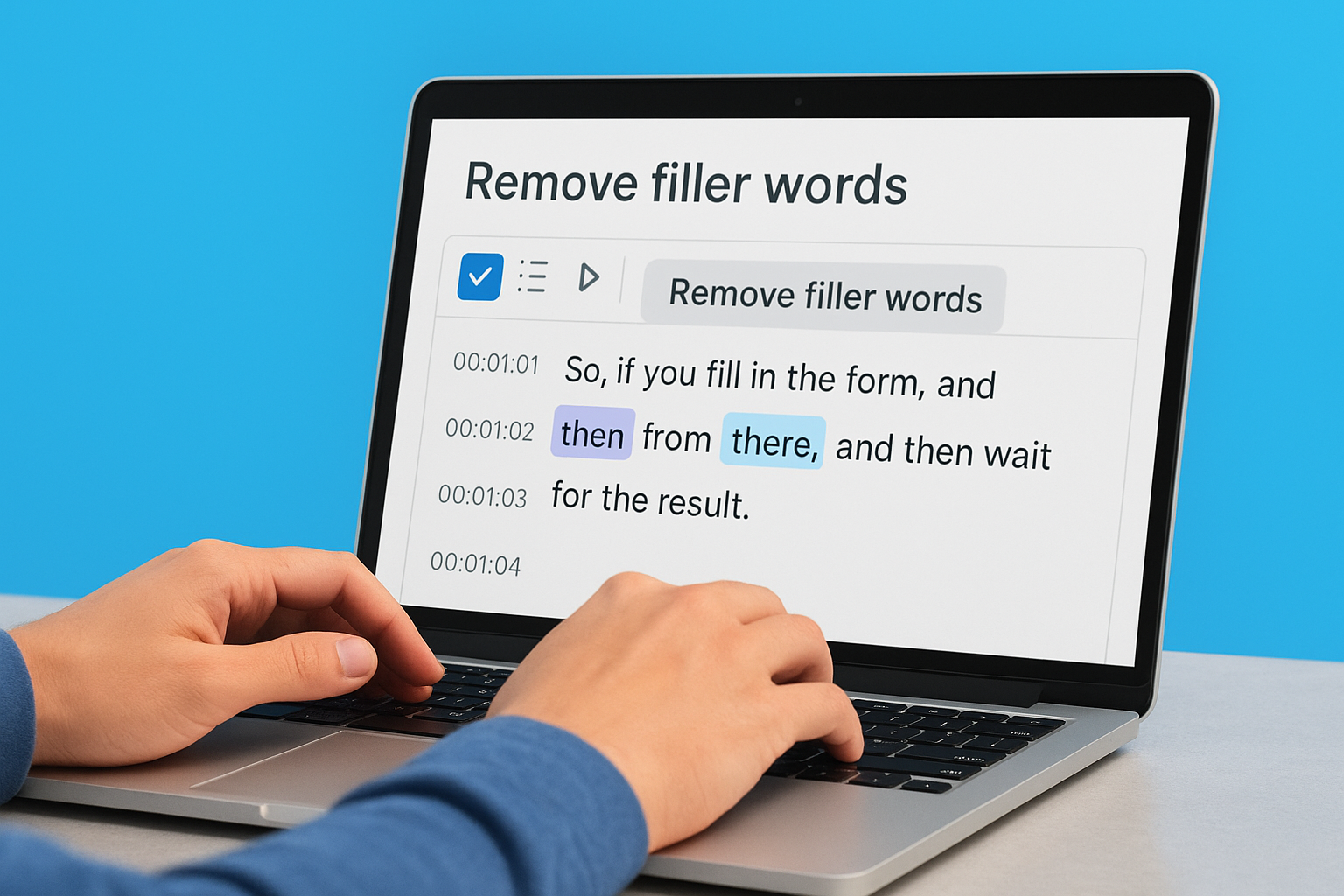
Check the boxes next to each filler word you want to remove from your transcript. The software highlights every instance in your text so you can review where they appear before deletion. Click "Remove all" to delete the selected words from both your transcript and your audio file. Descript cuts the audio segments automatically, which shortens your recording length based on how many filler words you removed.
Apply selective filler word removal
Review the highlighted filler words in context before removing them all. Sometimes "like" functions as a necessary comparison word rather than a filler, or "you know" emphasizes an important point. Uncheck specific instances by clicking individual highlights in your transcript. The software removes only the checked instances and leaves the others intact.
Save your filler word preferences as a template by clicking "Save as preset" in the removal panel. Name your preset something specific like "Podcast Cleanup" or "Interview Polish." Apply this same preset to future recordings with one click instead of selecting filler words manually every time.
Step 4. Export your transcript
Your edited transcript sits in Descript, but you need it in a format you can share, publish, or archive. Descript transcription provides multiple export options that preserve your corrections, speaker labels, and timestamps. Each format serves different purposes, from plain text documents to subtitle files for video platforms. You select your format based on where you plan to use the transcript next.
Access the export menu
Click File in the top menu bar, then select Export. Descript displays a panel with all available export formats. You can also use the keyboard shortcut Command+E (Mac) or Control+E (Windows) to open this panel faster. The export window shows format options on the left side and settings for your selected format on the right.
Your export options depend on whether you’re working with audio or video content. Audio files show fewer format choices than video projects, which include subtitle and caption formats designed for video platforms.
Choose your export format
Select from these common export formats based on your specific needs:
Text (.txt or .docx) exports your transcript as a plain document without timestamps. Choose this format when you need a readable document for blog posts, articles, or written records. The .docx option preserves speaker labels as formatted headings, while .txt creates a simple text file with no formatting.
Subtitles (.srt) creates a file with timestamps and text suitable for YouTube, Vimeo, or video editing software. Each subtitle entry includes start time, end time, and the corresponding text. Use this format when you need to add captions to published videos.
WebVTT (.vtt) functions like SRT files but includes additional styling options for web-based video players. Select VTT when you’re embedding videos on websites that support advanced caption formatting.
Export to SRT or VTT formats preserves your timing edits, so any filler words you removed from the audio won’t appear in the subtitle timestamps.
PDF generates a formatted document with your transcript, speaker labels, and optional timestamps. This format works well for sharing transcripts with clients who need a polished, unchangeable document.
Configure format-specific settings
Click the gear icon next to your selected format to adjust export settings. For text exports, you choose whether to include speaker names, timestamps, or both. Check "Include speakers" to maintain your labeled dialogue structure. Enable "Include timestamps" if you need time references for each line or paragraph.
Subtitle formats let you set maximum characters per line and reading speed. Standard settings use 42 characters per line with subtitles appearing for 2 seconds minimum. Adjust these values if your platform has specific requirements. Click "Export" after configuring your settings, then choose your save location. Descript creates your file immediately and opens the folder containing your exported transcript.
Accuracy levels and common limitations
Descript transcription delivers different accuracy rates depending on your audio quality, speaker clarity, and content type. You won’t get perfect results every time, and understanding where the software struggles helps you set realistic expectations for editing time. Knowing these limitations ahead of time lets you plan your workflow around Descript’s strengths and prepare for manual corrections where needed.
Expected accuracy rates for different scenarios
Clean audio with a single speaker produces 90 to 95 percent accuracy in most cases. This means you’ll correct roughly five to ten words per 100 words transcribed, which takes about 10 minutes for a one-hour recording. Your accuracy drops to 75 to 85 percent with multiple speakers or when people talk over each other, since the software struggles to separate overlapping voices.
Accented English reduces accuracy by 10 to 20 percentage points compared to standard American English. Heavy regional accents, non-native speakers, or speakers with speech impediments require more manual corrections. Technical content with specialized vocabulary typically scores 70 to 80 percent accuracy unless you’ve added those terms to your custom dictionary beforehand.
Expect to spend 20 to 30 minutes correcting a one-hour transcript with good audio quality, but budget 45 to 60 minutes for recordings with accents, technical terms, or background noise.
Background music in your recording cuts accuracy significantly. The software attempts to transcribe both the dialogue and song lyrics, creating nonsensical text mixed throughout your transcript. Phone interviews recorded through speakerphone drop to 60 to 70 percent accuracy because of compression artifacts and echo.
Audio conditions that reduce accuracy
Poor microphone placement creates muffled audio that Descript misinterprets as different words. Recording from more than 12 inches away introduces room echo and reduces clarity. You’ll see the software substitute similar-sounding words like "their" for "there" or "affect" for "effect" more frequently in distant recordings.
Low audio levels force you to increase gain during editing, which amplifies background noise along with speech. Files with inconsistent volume levels cause the transcription engine to miss quiet sections entirely or misinterpret them. Recordings below -18 dB average loudness show noticeably worse results than properly normalized audio.
Compression artifacts from low-bitrate files create problems with consonants and word boundaries. MP3 files encoded at 64 kbps or lower lose high-frequency information that Descript needs to distinguish similar words. Wind noise, handling noise, and electrical interference all introduce audio elements the software tries to transcribe as speech.
Content types that cause problems
Rapid speech above 180 words per minute causes Descript to skip words or combine separate words into nonsense. The software works best with normal conversational pace of 120 to 150 words per minute. Speakers who mumble, trail off at sentence ends, or speak in fragments produce incomplete transcripts that require extensive editing.
Numbers, dates, and addresses appear inconsistently in transcripts. You might see "twenty-three" written as "23" or "2 3" depending on how the speaker pronounced it. Domain names and email addresses rarely transcribe correctly, appearing as separate words instead of connected strings. Acronyms cause similar issues, with "USCIS" potentially appearing as "U.S. C.I.S." or "you sis."
Understanding Descript pricing and limits
Descript pricing follows a subscription model rather than charging per transcription minute. You pay a flat monthly or annual fee that includes unlimited transcription hours on paid plans. The free tier gives you limited transcription time to test the service, but serious users need a paid subscription to handle regular transcription work. Your choice between plans depends on how many transcription hours you need monthly and whether you want advanced features like AI voices or multi-track editing.
Free tier limitations and features
The free plan includes one transcription hour per month at no cost. This resets on the first day of each month, so unused hours don’t roll over. You get access to basic editing tools, filler word removal, and export options without paying anything. The free tier works well for occasional users who transcribe short recordings or want to evaluate accuracy before committing to a subscription.
Your free account limits you to 720p video export resolution and prevents you from using advanced features like Studio Sound or AI speaker detection. You can only work on one project at a time, which means finishing your current transcript before starting a new one. These restrictions push regular users toward paid plans quickly.
Free tier users often run out of transcription hours within the first week if they process content regularly, making the paid plans necessary for consistent work.
Paid plan options and transcription hours
The Creator plan costs $12 per month (billed annually) or $24 monthly. You receive unlimited transcription hours with this plan, meaning you process as many audio and video files as needed without watching a meter. This tier includes 1080p video export, 10 hours of remote recording storage, and access to AI features like automatic filler word detection.
Upgrading to the Pro plan at $24 per month (annual billing) or $40 monthly adds 4K video export, 100 hours of cloud storage, and advanced collaboration tools. Both paid plans remove the single-project limitation, letting you work on multiple transcriptions simultaneously. Your unlimited transcription applies to both Descript transcription and overdub generation, so you don’t hit separate caps for different features.
Calculate your actual costs
Compare Descript’s unlimited model to traditional transcription services that charge $1 to $3 per audio minute. Ten hours of transcription monthly through a pay-per-minute service costs $600 to $1,800, while Descript’s Creator plan runs $144 annually for the same work. You break even after transcribing two to four hours in your first month, depending on the alternative service’s rates.
Annual subscriptions save you 50 percent compared to monthly billing. The Creator plan drops from $288 yearly (at $24/month) to $144 when you pay upfront. Track your transcription volume for one month on the free tier, then choose your plan based on actual usage rather than estimated needs.
When to choose professional transcription instead
Descript transcription handles most everyday recording needs, but certain situations demand human accuracy that software can’t provide. You need professional transcription services when legal compliance matters, when errors create liability, or when your content requires 99 percent accuracy or higher. Understanding these scenarios helps you choose the right tool for each project instead of forcing automated transcription into situations where it fails.

Legal and medical documentation requirements
Court proceedings, depositions, and medical records require certified transcription with legal accountability. You can’t submit Descript transcripts for court cases because they lack the certification and accuracy guarantees courts demand. Professional transcriptionists provide signed statements of accuracy and professional liability insurance that protects you if errors appear in critical documents.
Medical transcription involves specialized terminology, patient privacy requirements, and HIPAA compliance that automated tools don’t address. Your patient records, diagnostic reports, and treatment notes need human transcriptionists who understand medical vocabulary and follow strict confidentiality protocols. Languages Unlimited handles these specialized projects with qualified professionals who meet industry standards.
Professional services provide legal certification and liability protection that automated transcription software cannot offer, making them essential for official documentation.
When accuracy must reach 99 percent or higher
Academic research, published interviews, and official statements require near-perfect accuracy that Descript can’t consistently deliver. You need professional transcription when your transcript becomes part of a published work, academic paper, or official record. Human transcriptionists achieve 98 to 99 percent accuracy on clean audio and still reach 95 percent with challenging recordings.
Marketing materials, investor presentations, and public relations content demand this higher accuracy because transcription errors become published mistakes that damage credibility. Professional services include multiple review passes where different transcriptionists verify each other’s work.
Complex audio that defeats automation
Projects with heavy accents, multiple languages, or extreme background noise exceed Descript’s capabilities. Conference recordings with ten or more speakers talking over each other require human judgment to separate voices and attribute statements correctly. Your international conference calls, multilingual meetings, or technical presentations with domain-specific jargon process faster through professional services than spending hours correcting automated errors.
Use this decision matrix to choose your transcription method:
| Situation | Use Descript | Use Professional Service |
|---|---|---|
| Podcast editing | ✓ | |
| Social media content | ✓ | |
| Legal deposition | ✓ | |
| Medical records | ✓ | |
| Heavy accent (3+ speakers) | ✓ | |
| Published academic work | ✓ | |
| Quick draft transcript | ✓ | |
| Certified translation needed | ✓ |
Budget your transcription expenses monthly by routing simple projects through Descript and sending complex or sensitive work to professional services. This hybrid approach balances speed and cost with accuracy requirements.
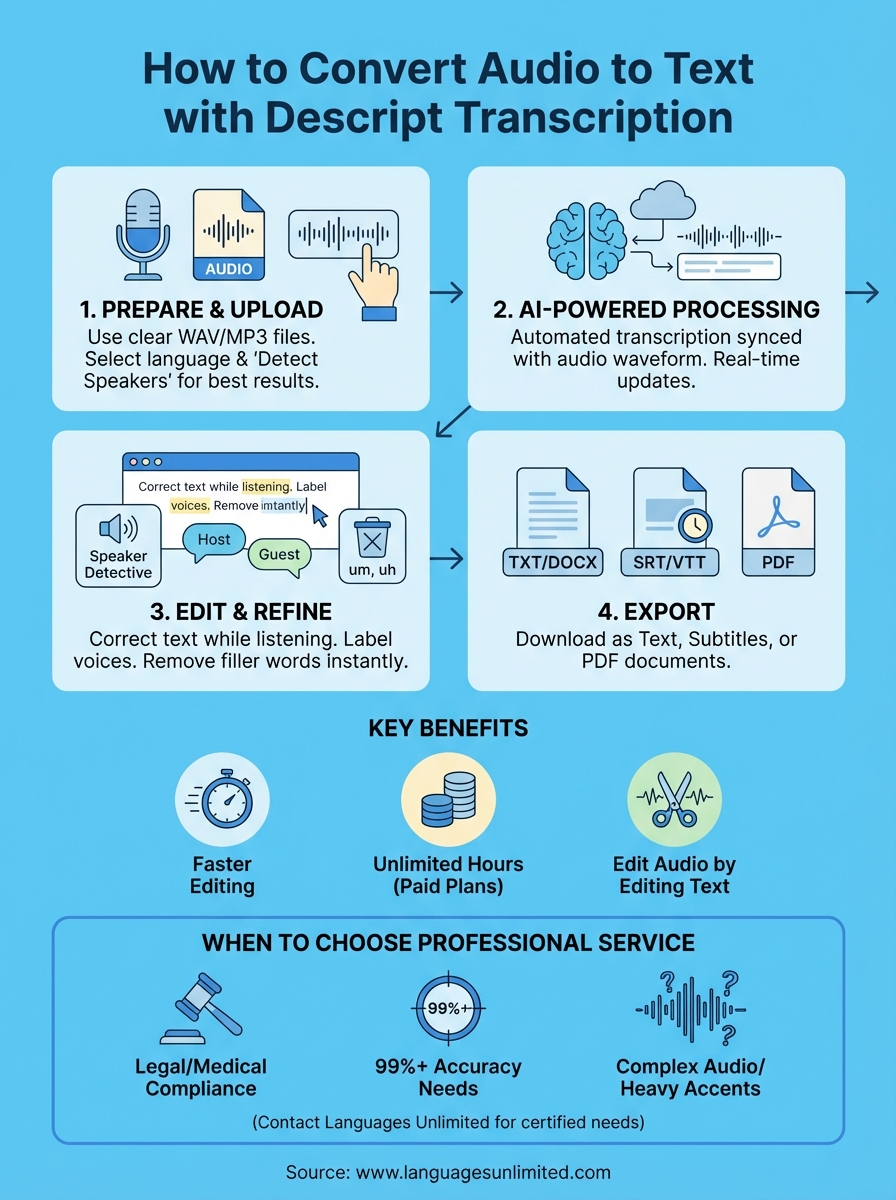
Final thoughts on transcription tools
Descript transcription gives you a powerful option for converting audio to text when you need speed and built-in editing tools. The software handles routine transcription work efficiently, particularly for podcasts, interviews, and video content where minor errors don’t create serious problems. You save both time and money on projects that don’t require legal certification or absolute accuracy.
Your transcription strategy should match each project’s requirements. Process simple recordings through Descript to leverage unlimited monthly hours and integrated editing features. Route your sensitive or complex projects to professional services when accuracy matters more than turnaround time. This balanced approach maximizes efficiency while maintaining quality standards where they count most.
Professional transcription becomes essential when your project requires certified accuracy, legal compliance, or specialized expertise. Contact Languages Unlimited for projects involving legal documents, medical records, or multilingual content that demand human accuracy and industry certifications. Their qualified transcriptionists deliver the precision automated tools cannot match.