



You need captions during your Zoom calls. Maybe you have hearing-impaired participants, non-native speakers who benefit from reading along, or you simply want a written record of what was said. Whatever your reason, scrambling to find a third-party transcription tool or manually typing notes defeats the purpose of efficient communication.
Zoom live transcription solves this with its built-in feature that converts speech to text in real time. You get automated captions that appear on screen during meetings, webinars, and even phone calls. No external apps required. The feature works for both Zoom Meetings and Zoom Phone, though each has its own setup process.
This guide walks you through enabling live transcription for Zoom meetings and Zoom Phone calls. You’ll learn the exact settings to configure, how to activate captions during active sessions, what limitations exist, and how to troubleshoot common issues. By the end, you’ll know how to provide accessible communication for every participant on your calls.
What Zoom live transcription can and cannot do
Zoom live transcription converts spoken audio into text captions that appear in real time during your sessions. You get this functionality for both Zoom Meetings/Webinars and Zoom Phone calls, though each operates through separate settings. The system uses automated speech recognition to generate captions, and you can view them as they appear or access the full transcript in a side panel.

Core capabilities
The feature supports multiple languages for meetings and webinars, letting you select your speaking language from the caption settings. You can view captions at the bottom of your screen or open a full transcript panel that shows timestamped text with speaker names. Participants can enable captions individually without recording the entire meeting, and hosts can save the transcript for later reference. The system works on desktop applications (Windows, macOS, Linux) and mobile apps (iOS, Android).
Zoom transcription runs independently of recording, so you can capture text without creating video files.
Key limitations
Zoom live transcription doesn’t retain transcripts automatically for phone calls, only for meetings where you’ve enabled the save option. The feature won’t work on encrypted calls or those using location-based routing. Accuracy depends on audio quality, speaker clarity, and accent familiarity. You cannot edit transcripts in real time, and the system may struggle with technical terminology, multiple speakers talking simultaneously, or heavy background noise.
Step 1. Enable live transcription for Zoom meetings
You need to enable zoom live transcription through your account settings before the feature appears during meetings. The activation process differs depending on whether you’re an administrator configuring settings for your organization or an individual user adjusting your personal preferences. Admins control the availability of the feature at the account level, while users can set their own defaults once the admin has enabled it.
Enable transcription as an account admin
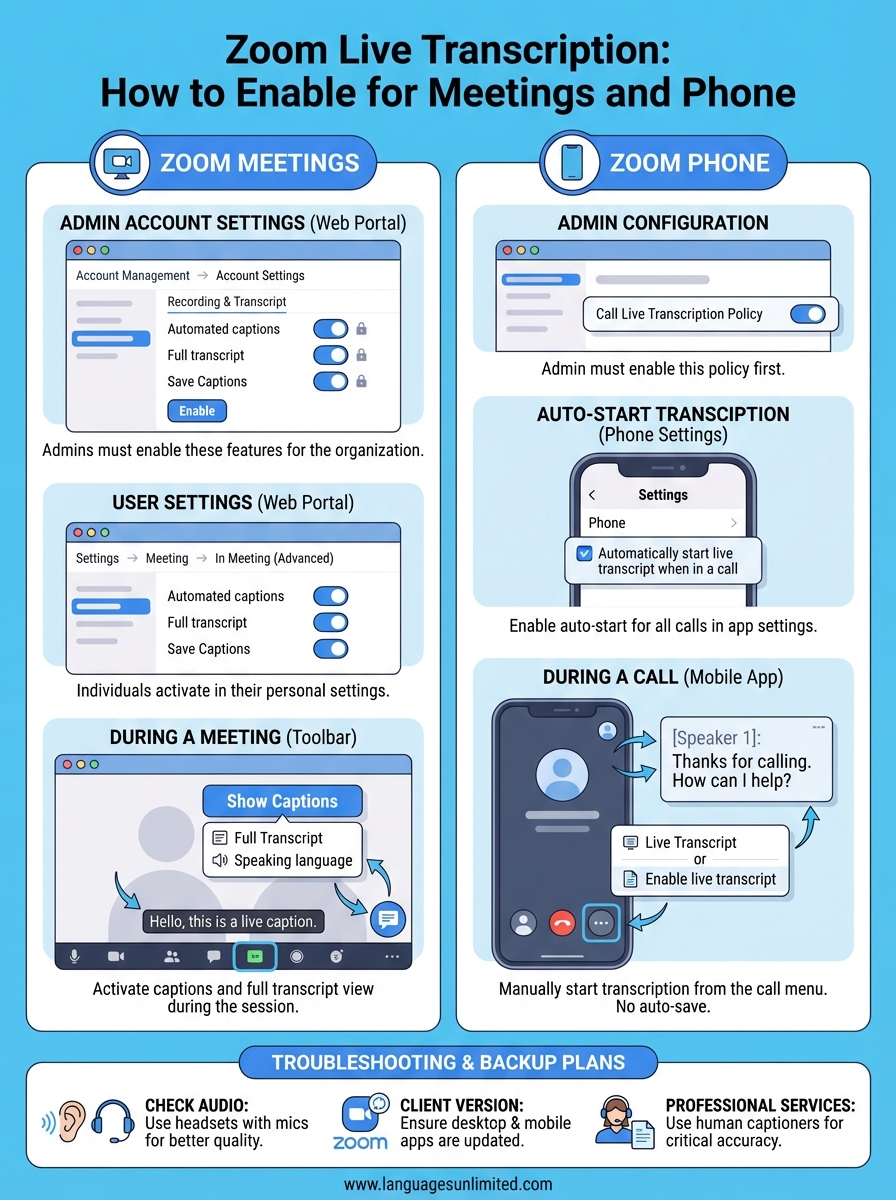
Account owners and admins must activate the feature before anyone in your organization can use it. Log into your Zoom web portal and follow these steps to enable live transcription for all users:
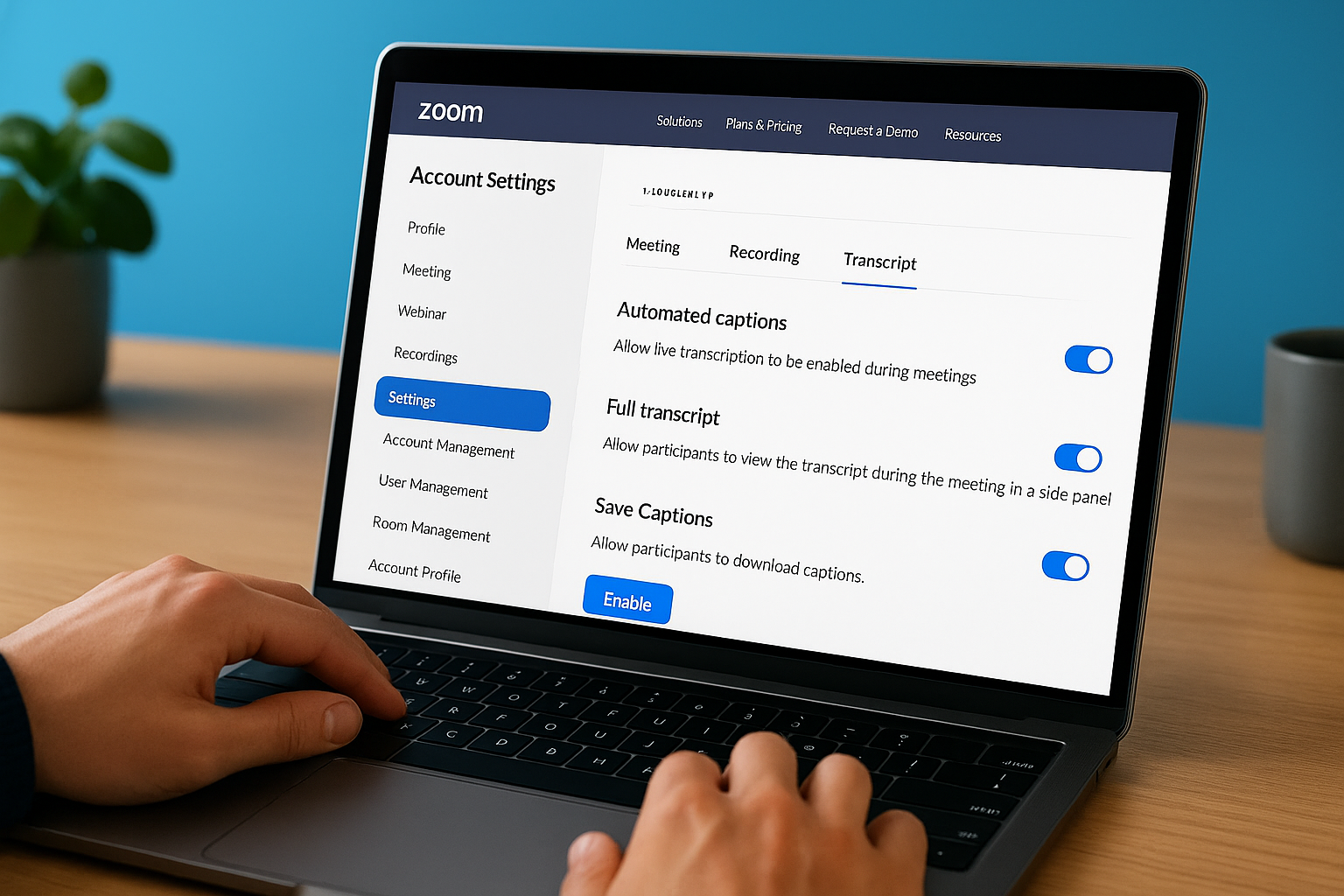
- Navigate to Account Management and select Account Settings
- Click the Recording & Transcript tab at the top
- Scroll to find Automated captions and toggle it to the blue (on) position
- Click Enable in the confirmation window that appears
- Toggle Full transcript to allow users to view complete transcripts in the side panel
- Toggle Save Captions so users can download transcripts without recording the meeting
Lock any settings you want to enforce across all users by clicking the lock icon next to each toggle.
Locking settings prevents individual users from disabling features you’ve mandated for compliance or accessibility requirements.
Enable transcription for individual meetings
You can activate live transcription for your own meetings through your user settings if your admin has enabled the feature. Access the Zoom web portal using your credentials, then:
- Click Settings in the left navigation menu
- Select the Meeting tab, then In Meeting (Advanced)
- Find Automated captions and switch the toggle to blue
- Enable Full transcript to access the side panel view during meetings
- Enable Save Captions to download transcripts after your sessions end
Your changes apply to all future meetings you host with this account.
Step 2. Use live transcription during a meeting
You activate zoom live transcription through the meeting toolbar once your session starts. The feature appears as a button labeled "Show Captions" or "Live Transcript" depending on your Zoom version. You can turn captions on or off at any point during the meeting without affecting other participants’ settings. Each person controls their own caption display, which means enabling it for yourself won’t force captions on others in the call.
Activate captions during your meeting
Click the Show Captions button at the bottom of your Zoom window to start displaying transcribed text. The captions appear along the bottom edge of your screen by default. To access additional options, click the upward arrow next to the caption button and select from these controls:
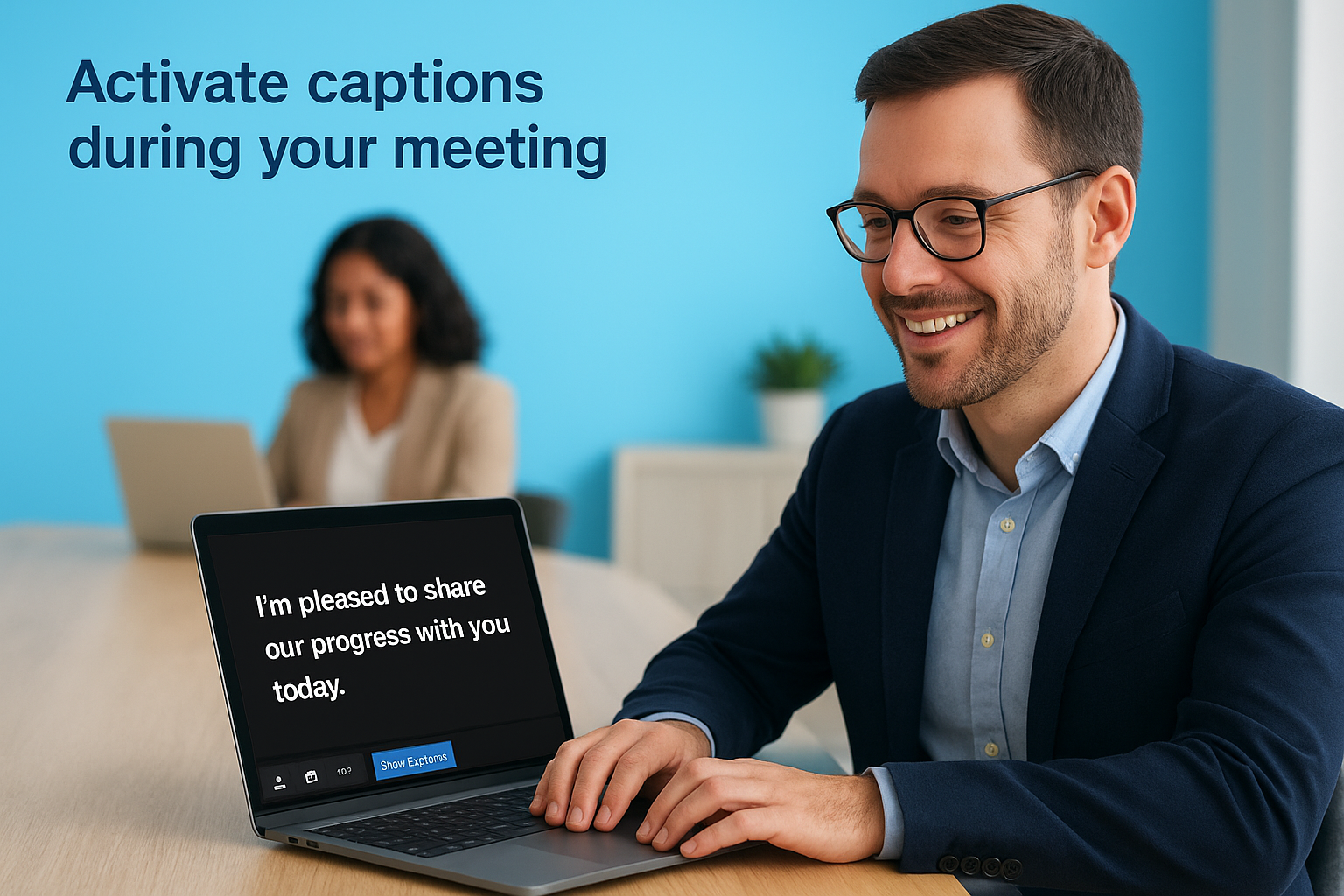
- Full Transcript: Opens a side panel showing the complete conversation with timestamps and speaker names
- Speaking language: Changes the language used for transcription if you’re speaking in a supported non-English language
- Hide Captions: Turns off the caption display entirely
You can scroll through the transcript panel to review earlier parts of the conversation while captions continue updating in real time. Click the new window icon in the transcript panel to detach it from your main Zoom window, giving you a separate transcript display on another monitor.
Participants hear or see a notice when transcription starts, so everyone knows the feature is active.
Access transcription on mobile devices
Open the More menu (three dots) during your mobile Zoom session to find transcription controls. Tap Enable live transcript to start captions on your device. The transcript appears in a dedicated window where you can scroll back through previous conversation while new captions continue generating. Tap Disable live transcript when you want to remove the caption display from your screen.
Step 3. Enable and use transcription for Zoom Phone
Zoom Phone transcription operates separately from meeting transcription and requires its own configuration. Your admin must enable the Call Live Transcription policy before you can use this feature for phone calls. Once enabled, you can set transcription to start automatically or activate it manually during calls. The feature works on both desktop and mobile Zoom apps, converting call audio into text captions that only you can see.
Enable auto-start for phone calls
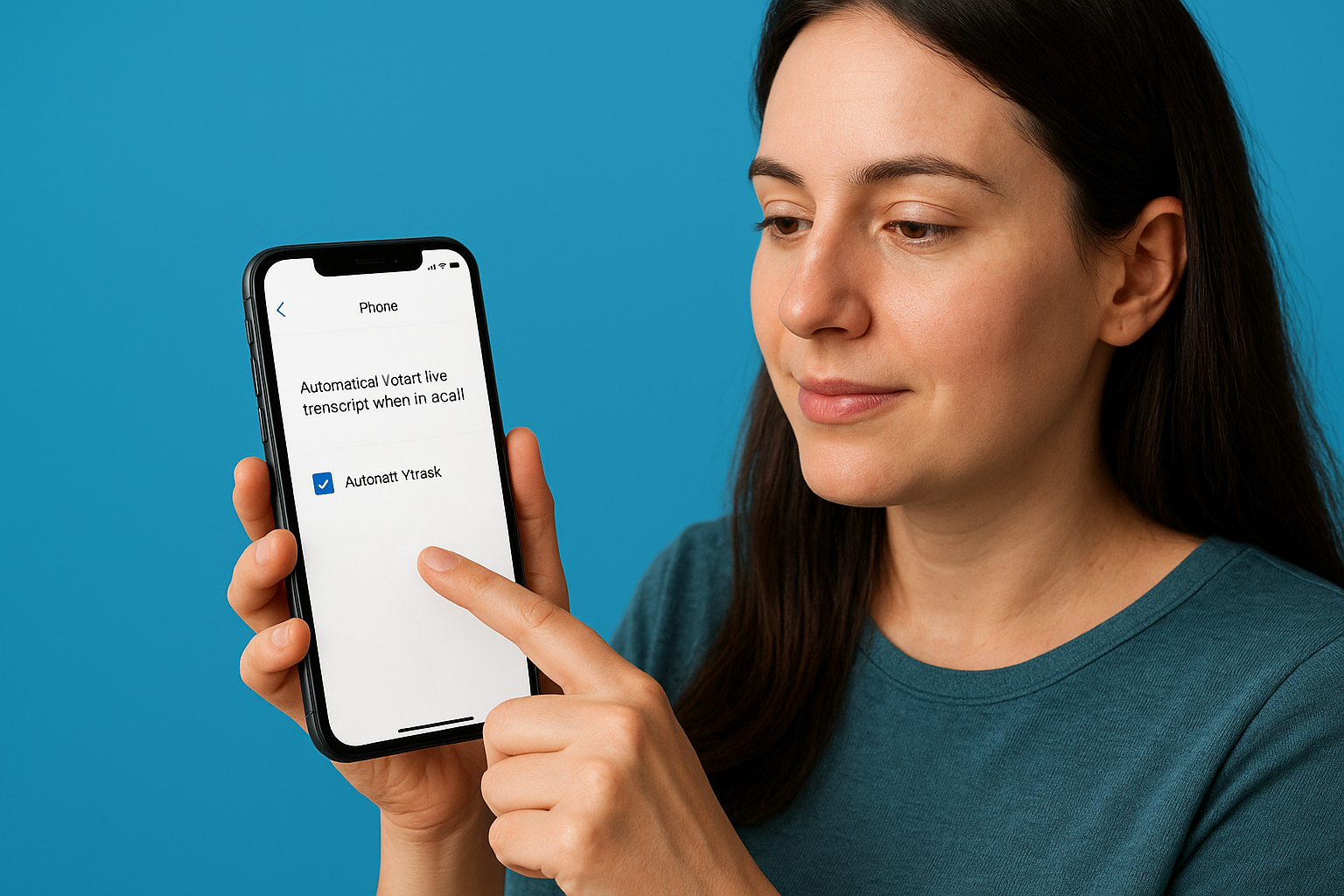
Access your Phone settings in the Zoom desktop app by clicking your profile picture, selecting Settings, then clicking Phone. Check the box for Automatically start live transcript when in a call to enable captions for all your phone calls. On mobile devices, tap More, select Phone under Settings, then toggle Automatically Start Live Transcript to the on position.
Activate transcription during a call
Click the More icon during an active call and select Live Transcript to start zoom live transcription. The transcript window opens with real-time captions showing speaker names and timestamps. Click Disable Transcript from the same menu when you want to stop captioning. Mobile users tap More, then Enable live transcript to activate captions or Disable live transcript to turn them off.
Zoom does not retain phone call transcripts automatically, so save any needed information during your conversation.
Step 4. Troubleshoot and plan accessibility backups
Zoom live transcription works reliably when your setup meets the technical requirements, but you need a backup plan when it fails. Audio quality issues, unsupported languages, or encrypted calls can prevent transcription from functioning. You also face limitations when participants use web browsers instead of desktop or mobile apps, since the feature only works in dedicated Zoom applications.
Common transcription problems and fixes
Check your Zoom client version first if transcription options don’t appear. You need the global minimum version or higher for both desktop and mobile apps. Verify your admin enabled the feature in account settings if you’re missing the caption button entirely. Audio clarity affects accuracy, so ask participants to use headsets with microphones instead of built-in laptop speakers and mics. Disable transcription briefly and restart it if captions stop displaying or show significant delays.
Create a backup accessibility plan
Set up professional transcription services for critical meetings where accuracy matters most. Schedule a live captioner for board meetings, legal proceedings, or medical consultations where automated transcription doesn’t meet compliance standards. Keep contact information for certified transcription providers who can join your calls as participants and deliver real-time captions through third-party platforms.
Professional transcription services provide human accuracy that automated tools cannot match for specialized terminology or accents.
Next steps
You now have zoom live transcription configured for both meetings and phone calls. Start by enabling the feature in your account settings, then test it during your next internal team meeting before using it with external participants. This hands-on practice helps you identify audio quality issues and familiarize yourself with the transcript controls so you can troubleshoot problems quickly during important calls.
Consider professional transcription services for situations where automated captions fall short. Critical meetings, legal proceedings, or medical consultations require human accuracy that captures context, technical terminology, and speaker nuances that automated systems miss. Contact Languages Unlimited for certified transcription and interpretation services that complement your Zoom setup with guaranteed accuracy and compliance standards for sensitive communications.