



The Amara subtitle editor is a free, browser-based tool that lets you create, edit, and translate subtitles for video content without installing any software. Whether you’re captioning a training video, adding subtitles to a webinar, or translating existing captions into another language, Amara offers a straightforward way to get it done.
At Languages Unlimited, we provide professional captioning, subtitling, and accessibility services, including Section 508 compliance, for organizations across the United States. We work with these tools daily, and we know that many teams start with a DIY approach before realizing they need expert support. Either way, understanding how Amara works gives you a solid foundation.
This guide walks you through setting up your account, adding and syncing subtitles, editing existing captions, and translating subtitles into other languages. By the end, you’ll know exactly how to use Amara’s core features and when it might make sense to bring in professional help for larger or more complex projects.
What the Amara subtitle editor does and who it fits
The Amara subtitle editor runs entirely in your browser, which means you don’t need to download or install any software before you start. You load a video by URL or direct file upload, type your captions in a timeline interface, and sync each subtitle line to a precise timestamp. Amara also supports subtitle translation, so you can take an existing subtitle track and build a version in another language within the same project, without switching tools.
Amara is free for individual use and open-source, which makes it a practical starting point for teams working with limited budgets.
Core features you get with Amara
Amara gives you a full subtitling workflow in one place. Creating subtitles from scratch is straightforward: you pause the video, type your text, and assign start and end times to each line. You can also import existing subtitle files in formats like SRT, VTT, and DFXP, then adjust them directly inside the editor.
Here is a quick overview of what the tool includes:
| Feature | What it does |
|---|---|
| Manual subtitle creation | Type and time each caption line by hand |
| File import | Load SRT, VTT, or DFXP files for editing |
| Translation workflow | Add a second language track to any subtitle set |
| Keyboard shortcuts | Speed up syncing without using the mouse |
| Export options | Download finished subtitles in multiple formats |
Who gets the most out of it
Amara works best for a specific type of user. If you produce educational content, internal training videos, or nonprofit media, Amara gives you a capable free tool without requiring a large budget. Organizations working across multiple languages also benefit from the built-in translation workflow, since you can assign different language tracks to a single video project.
That said, Amara has limits. For high-volume work, compliance-sensitive content, or projects that require certified accuracy, a professional captioning service will save you significant time and reduce the risk of errors.
Step 1. Create an account and add your video
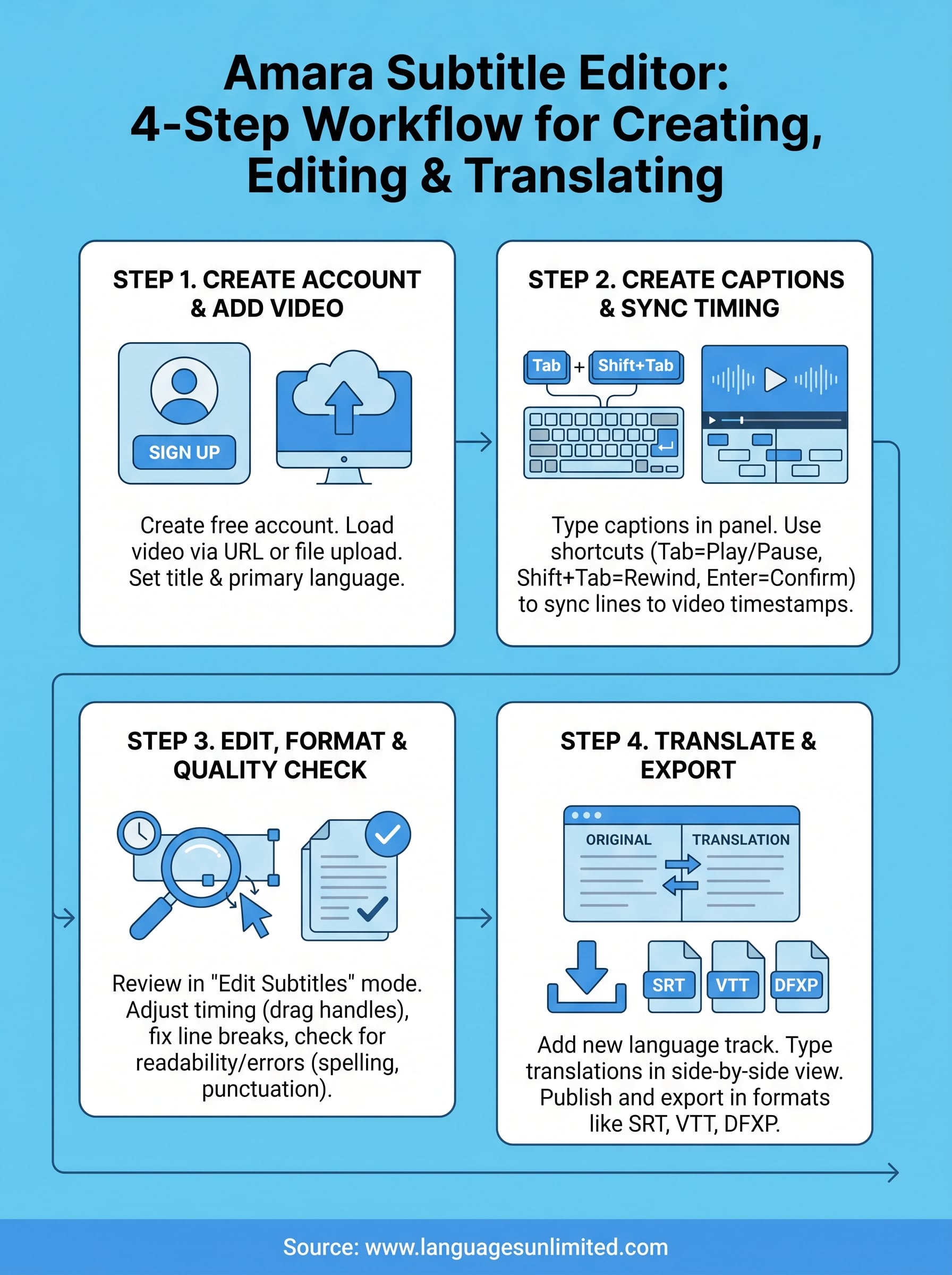
To start using the Amara subtitle editor, go to amara.org and create a free account with your email address. The signup process takes under two minutes: enter your email, set a password, and confirm your account through the verification link sent to your inbox.
Set up your profile and start a new project
Once you log in, click "Subtitle a Video" from your dashboard to start a new project. Amara lets you add a video by pasting a public URL from YouTube or Vimeo, or by uploading a file directly from your computer.
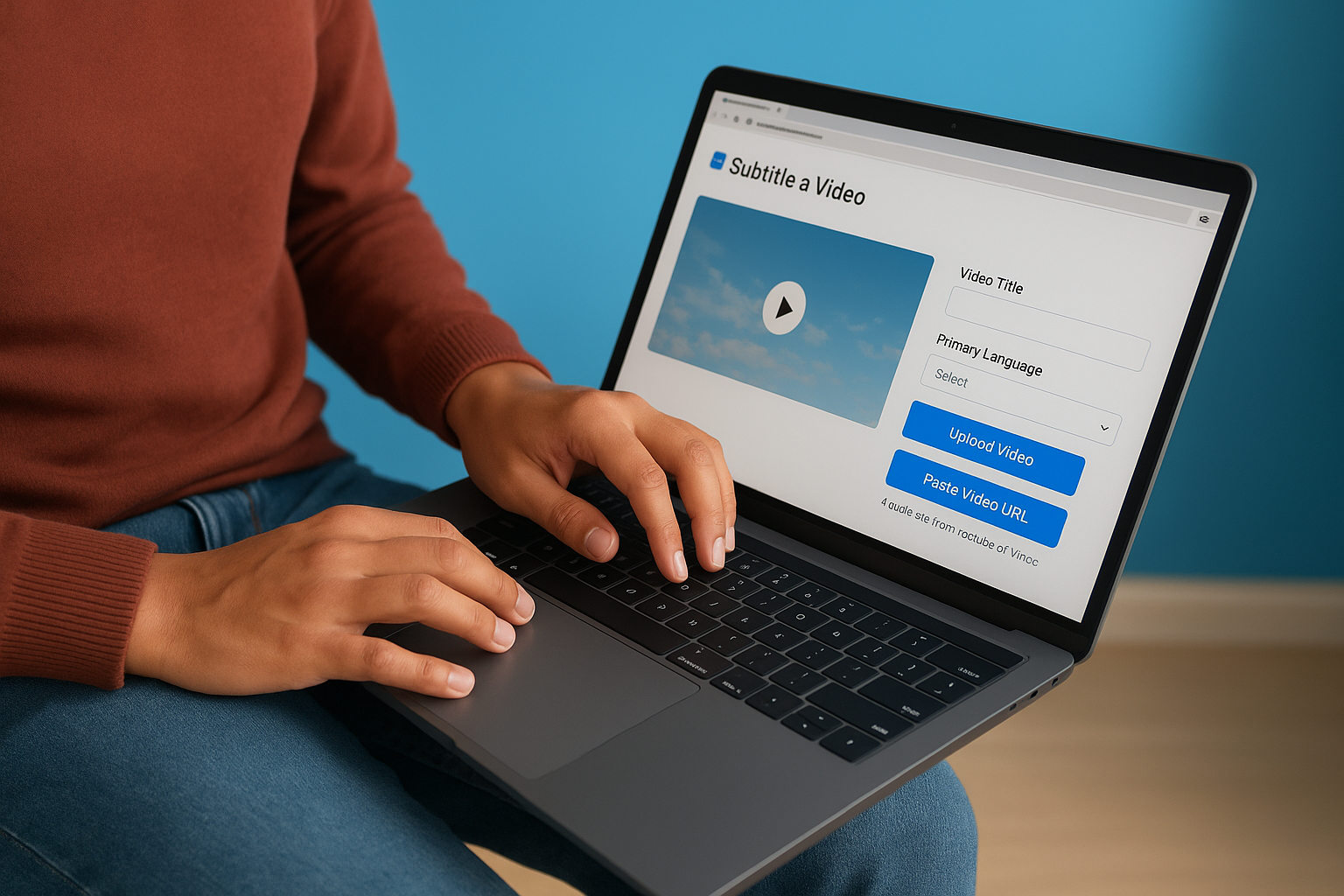
Make sure your video URL is publicly accessible before you paste it, since Amara needs to load the video to display it in the editor.
Fill in the video title and primary language fields before you proceed. These settings help Amara identify which language you are working in and keep your project organized, especially if you plan to add translation tracks later. Once your video loads, you will see a split-screen layout with the video player on the left and the subtitle entry panel on the right, and you are ready to move on to Step 2.
Step 2. Create captions and get the timing right
With your video loaded in the Amara subtitle editor, click "Start Subtitling" to open the caption entry panel. You will see a text input field below the video player. Type your first caption, then use the Tab key to play and pause the video so you can match each line to what the speaker is saying. This keeps your hands on the keyboard and moves the process along quickly.
Aim for subtitle lines between one and two lines of text, and keep each line on screen for at least one second and no more than seven seconds.
Use keyboard shortcuts to sync every line
Amara provides a set of keyboard shortcuts that cut down the time you spend on timing significantly. Press Shift+Tab to rewind two seconds if you need to re-check a line you just set. Once you confirm a caption, press Enter to create the next line and continue moving through the video.
Here are the core shortcuts to keep handy:
| Shortcut | Action |
|---|---|
| Tab | Play / pause |
| Shift + Tab | Rewind 2 seconds |
| Enter | Confirm line and move to next |
| Shift + Enter | Add a line break within one subtitle |
Step 3. Edit, format, and quality-check subtitles
Once you finish entering all your caption lines in the Amara subtitle editor, switch to the review mode by clicking the "Edit Subtitles" button on your project page. This view lets you scrub through the video and inspect each line against the actual audio, so you can catch timing gaps or text errors before you export.
Fix timing and line breaks
You can click any subtitle line in the timeline to select it, then drag the start or end handle to adjust how long it stays on screen. If a line runs too long or cuts off a word, shorten the text or split it into two separate lines. Use the on-screen playback controls to confirm each adjustment looks natural before moving on.
Keep each subtitle line between 42 and 50 characters per row so viewers can read it comfortably without pausing.
Check readability before you export
Run through your complete subtitle list and look for inconsistent capitalization, missing punctuation, and speaker labels that do not match your chosen style. A quick pass against the actual video audio also helps you catch auto-filled or mis-timed lines that slipped through during the initial entry phase.
Step 4. Translate subtitles and publish or export
Once your captions are clean and timed correctly, the Amara subtitle editor makes it easy to add a translation track without starting a new project from scratch. On your project page, click "Add a New Language" and select your target language from the dropdown menu.
Build your translation track
Amara opens a side-by-side view where your original subtitle lines appear on the left and an empty input field sits on the right. Work through each line and type the translated text directly into the corresponding field. Your timing carries over automatically, so you only need to focus on accurate translation, not re-syncing.
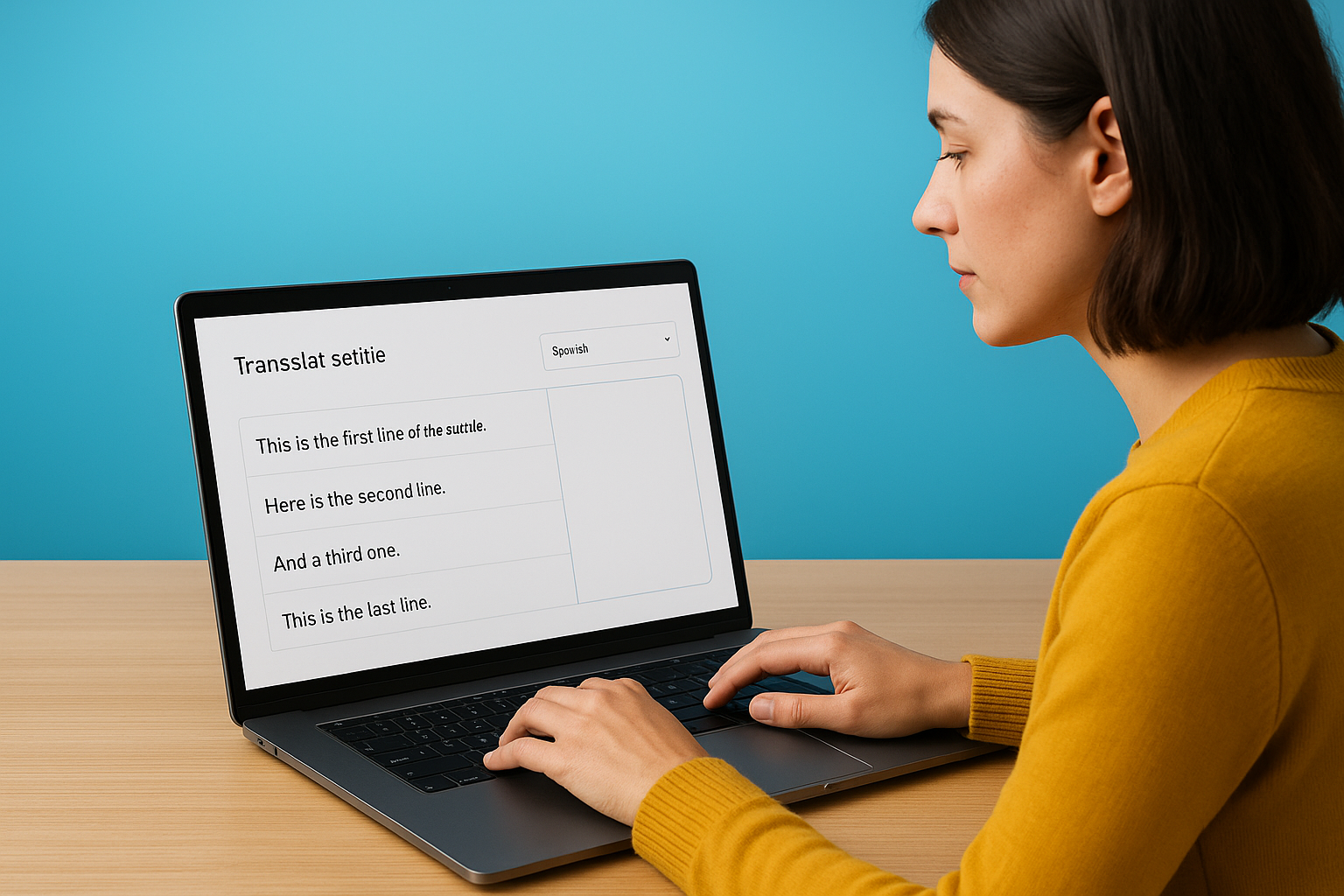
If you work with a bilingual colleague or professional translator, you can share the project link and assign them editing access directly inside Amara.
Export your finished subtitles
After you complete the translation, click "Publish" to save the track to your project. Then select "Download Subtitles" to export in your preferred format. Amara supports the following export formats:
- SRT
- VTT
- DFXP
- TXT
Choose SRT or VTT for broad compatibility across most video platforms, including YouTube and Vimeo.
Wrap up and next steps
The Amara subtitle editor gives you a complete workflow for creating, timing, editing, and translating subtitles directly in your browser. You now know how to set up a project, sync caption lines with keyboard shortcuts, clean up your subtitle track, and add a translation in a second language before exporting in a format that works across major video platforms, including YouTube and Vimeo.
For most small-scale or internal projects, Amara covers what you need. But if your work involves high-volume content, compliance requirements, or certified accuracy standards, handling subtitles manually becomes a significant risk. Professional captioning and subtitling services reduce errors, speed up turnaround, and free your team to focus on other priorities.
If you need expert subtitling, translation, or accessibility support for your video content, contact the Languages Unlimited team to discuss your specific project requirements and find out how professional language services can help you deliver accurate, accessible content at scale.